前言
这篇文章其实是为了测试 RK3399 主板的蓝牙功能而写的。理论上对其他 Linux 发行版同样适用,具体做法大同小异。本文记录一下相关步骤。
安装依赖
更新软件包索引:
sudo apt update安装依赖:
sudo apt install -y bluetooth bluez-tools bluez-obexd连接设备
注意以
[bluetooth]#开头的命令均要在蓝牙终端下执行,且仅执行#之后的内容。本文中所有的[目标设备的蓝牙地址]都要替换为目标设备实际的蓝牙地址。
进入蓝牙命令行
执行以下命令:
$ bluetoothctl输出:
Agent registered
[CHG] Controller B0:F1:EC:65:42:2D Pairable: yes
扫描设备
执行以下命令:
[bluetooth]# scan on输出:
[CHG] Controller B0:F1:EC:65:42:2D Discovering: yes
[NEW] Device 53:65:DE:CC:85:16 53-65-DE-CC-85-16
[NEW] Device 9C:28:F7:97:AB:DF Redmi K30 Pro Zoom Edition
其中 Device 后以 5 个冒号隔开的一串字符就是设备的蓝牙地址,紧接着的是设备名称。
配对设备
执行配对
执行以下命令:
pair 后面为目标设备的蓝牙地址,在上一步扫描设备的结果中获取。
[bluetooth]# pair 9C:28:F7:97:AB:DF输出:
Attempting to pair with 9C:28:F7:97:AB:DF
[CHG] Device 9C:28:F7:97:AB:DF Connected: yes
Request confirmation
确认配对
输入 yes 回车,并在手机上确认。
[agent] Confirm passkey 334486 (yes/no): yes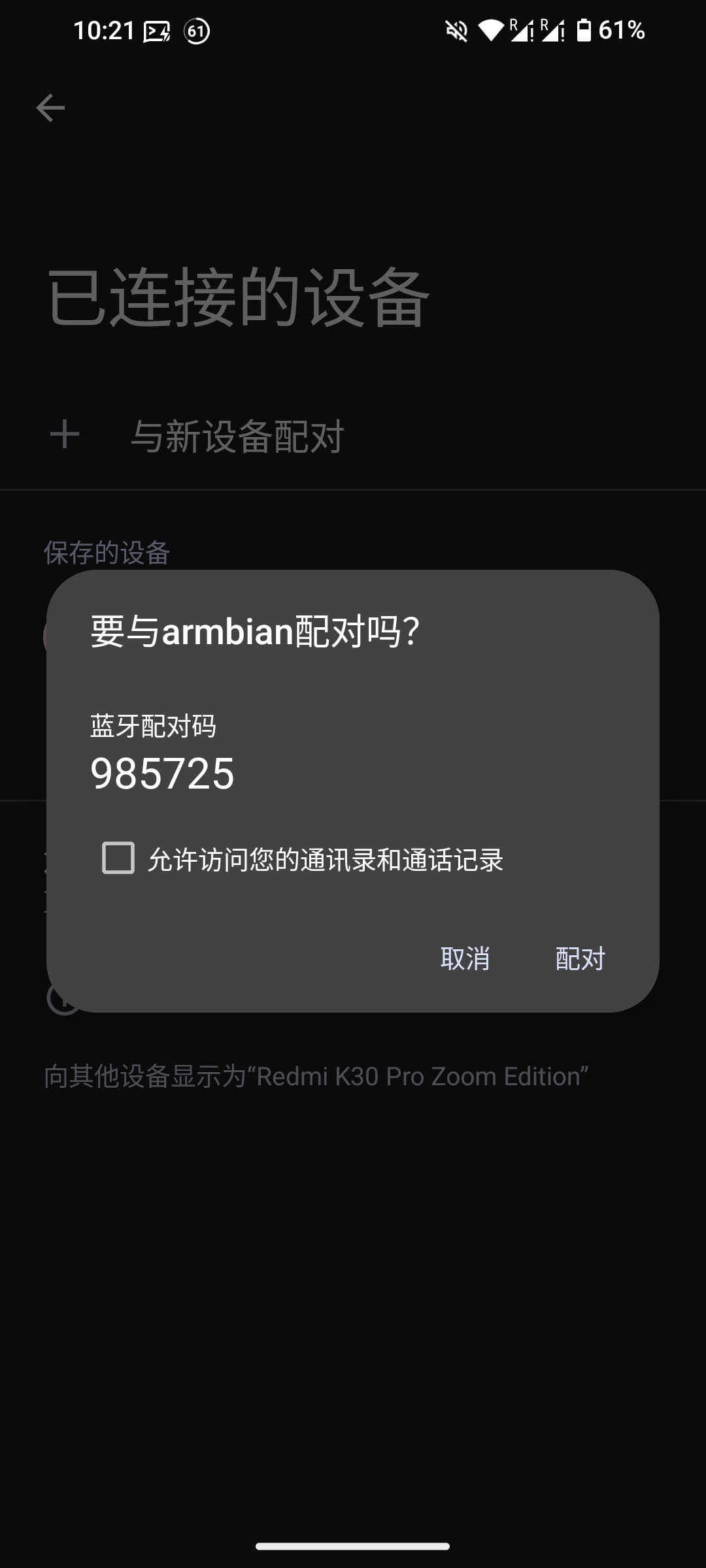
输出:
[CHG] Device 9C:28:F7:97:AB:DF Bonded: yes
[CHG] Device 9C:28:F7:97:AB:DF Modalias: bluetooth:v001Dp1200d1436
[CHG] Device 9C:28:F7:97:AB:DF UUIDs: 00001105-0000-1000-8000-00805f9b34fb
[CHG] Device 9C:28:F7:97:AB:DF UUIDs: 0000110a-0000-1000-8000-00805f9b34fb
[CHG] Device 9C:28:F7:97:AB:DF UUIDs: 0000110c-0000-1000-8000-00805f9b34fb
[CHG] Device 9C:28:F7:97:AB:DF ServicesResolved: yes
[CHG] Device 9C:28:F7:97:AB:DF Paired: yes
Pairing successful
[DEL] Device 53:65:DE:CC:85:16 53-65-DE-CC-85-16
[NEW] Device 53:65:DE:CC:85:16 53-65-DE-CC-85-16
[Redmi K30 Pro Zoom Edition]#
然后执行 exit 退出蓝牙命令行。
发送文件
由于是首次配对,已经默认连接上,就不需要再次连接了,后续使用需要进入蓝牙命令行,并执行 connect [目标设备的蓝牙地址] 进行连接。
执行:
$ bt-obex -p 9C:28:F7:97:AB:DF ./test.txt输出:
[Transfer#test.txt] Waiting...
[Transfer#test.txt] Completed

(bt-obex:38280): GLib-CRITICAL **: 14:23:50.652: g_atomic_ref_count_dec: assertion 'old_value > 0' failed

(bt-obex:38280): GLib-CRITICAL **: 14:23:50.654: g_atomic_ref_count_dec: assertion 'old_value > 0' failed
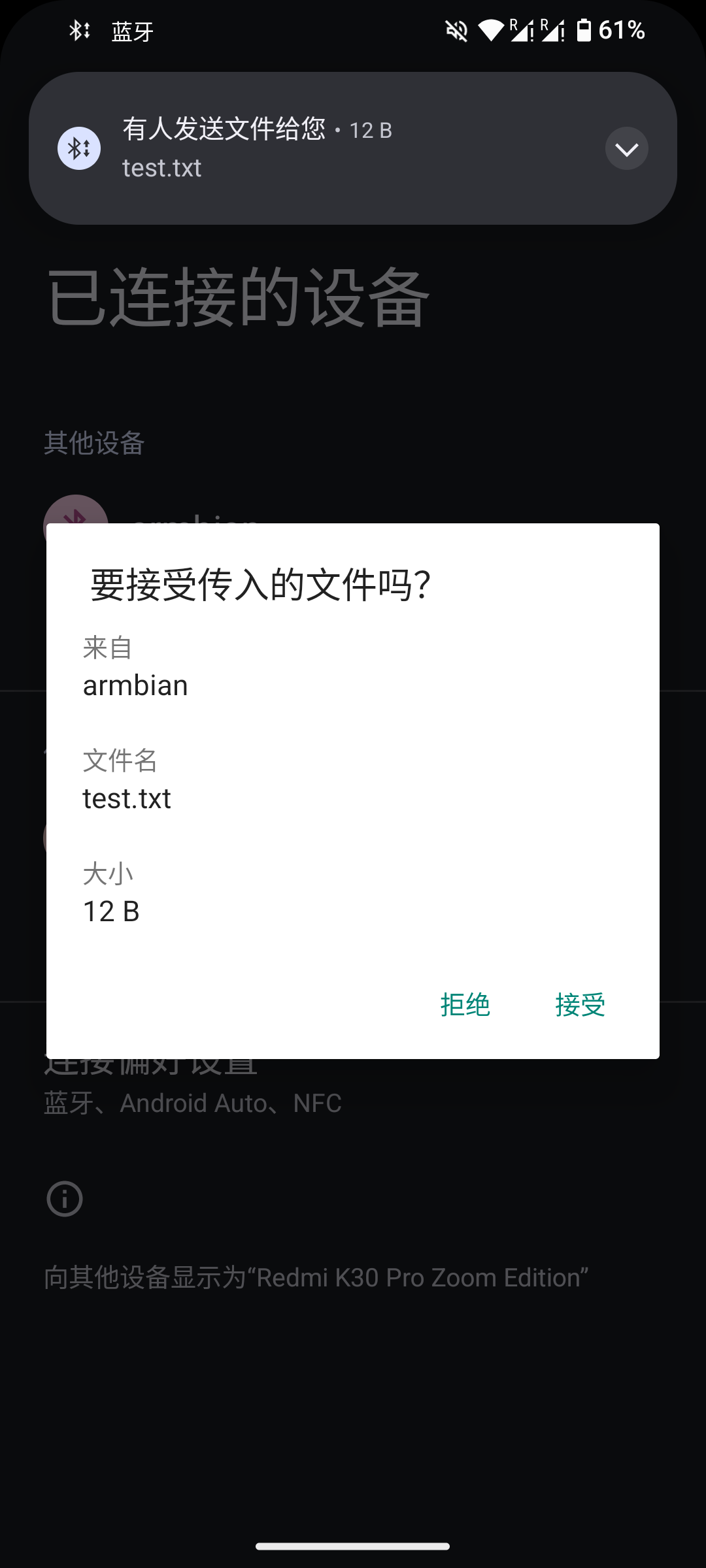
手机上确认接收即可。
常用命令
首先进入蓝牙命令行:
$ bluetoothctl开始扫描设备:
[bluetooth]# scan on停止设备扫描:
[bluetooth]# scan off使本机对其他设备可见:
[bluetooth]# discoverable on使本机对其他设备不可见:
[bluetooth]# discoverable off连接蓝牙设备:
[bluetooth]# connect [目标设备的蓝牙地址]信任蓝牙设备:
[bluetooth]# trust [目标设备的蓝牙地址]显示设备信息:
[bluetooth]# info [目标设备的蓝牙地址]
以上命令等同于在 bash 终端下执行 bluetoothctl + 具体命令。如:在蓝牙终端中执行 discoverable on 等同于在 bash 终端下执行 bluetoothctl discoverable on 。
评论